

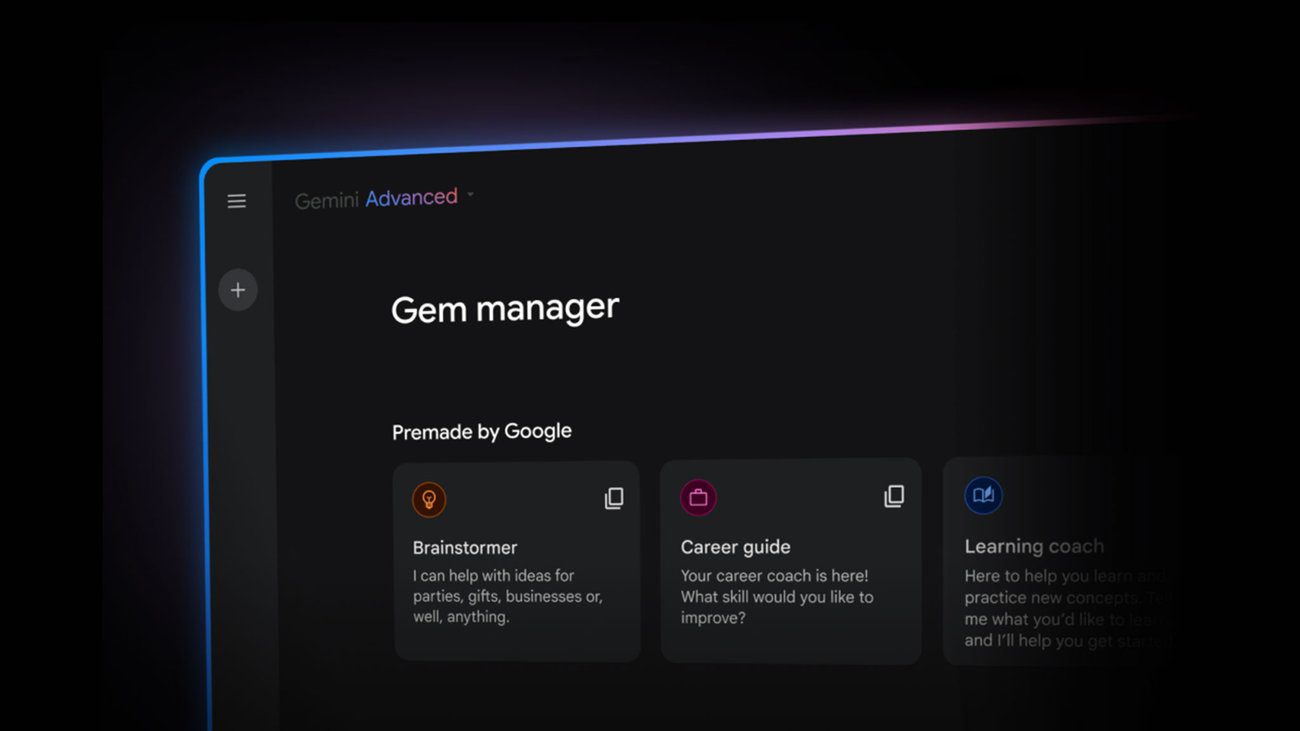

Google is making its customizable AI assistants, known as “Gems,” easier to use and share. The company has introduced a feature that allows users to share their custom Gems with friends, family, or co-workers, much like sharing a file.
What’s New
-
Gems are custom AI assistants people build by giving instructions for specific tasks. They first appeared under paid tiers where users could tailor chatbots as editors, coaches, coders, etc.
-
With the new sharing feature, any user can pick a Gem they’ve created, go to the Gem manager, and tap “Share” to give others access. Permissions are flexible: you can give viewing rights or permission to edit.
-
The goal is to avoid duplicate work — if someone else already made a Gem for meal planning, travel itinerary, writing edits, or whatever, you can share theirs instead of making your own. This helps in groups, families, or workplaces.
Why It Matters
-
This makes Gems more useful for collaboration. For example, co-workers can share a project assistant Gem, or family members can share something like a meal planner or vacation guider.
-
It lowers the barrier for people who don’t want to build a custom assistant from scratch. Shared Gems can help more people use AI tools without having to set up new ones.
-
The editing permissions mean shared Gems can be updated by multiple people, which helps maintain consistency.
Who Gets It & How
-
The feature is rolling out first to users of the advanced and paid Gemini tiers, like Business or Enterprise, in many countries.
-
Sharing works through the web app: in your Gem manager, next to each Gem you’ve made, there’ll now be a “Share” icon. From there you can select contacts, set whether they can edit or only use it, etc.
What to Watch For
-
How securely permissions and data are handled — shared Gems may contain context (like uploaded files or personal settings), so maintaining privacy and proper access control will matter.
-
What kinds of controls are given for editing vs just using a Gem — you want to avoid unwanted changes in shared Gems.
-
Whether Google expands this further: marketplace-style sharing, public Gems, or template libraries may come later.