

S Pen Remains the Signature Feature of the Galaxy S26 Ultra
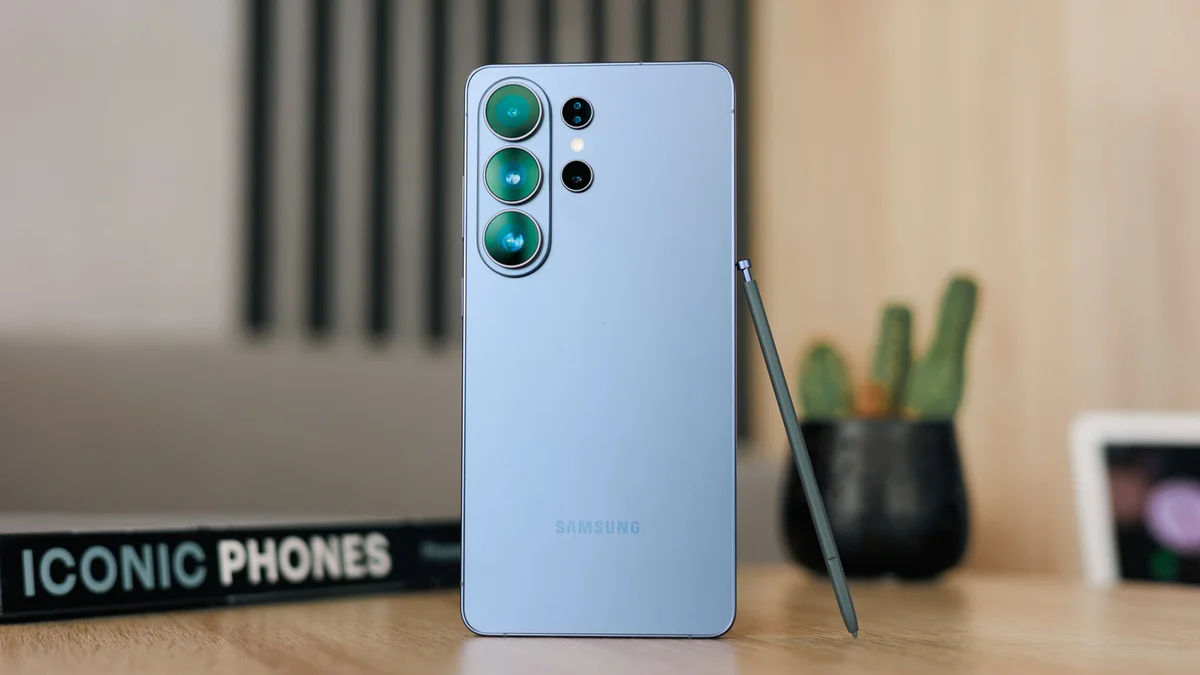
The Galaxy S26 Ultra continues Samsung’s long-running Ultra tradition by keeping the S Pen as one of its most distinctive features. In a flagship market where premium phones often feel similar in terms of display quality, camera hardware and raw performance, Samsung’s stylus still gives the Ultra model a practical advantage that most rivals simply do not offer.
On the Galaxy S26 Ultra, the S Pen is no longer just a tool for handwriting or sketching. It works as a precise shortcut for quick actions, smarter search, instant note-taking, image editing, translation, PDF annotation and AI-assisted productivity. This makes the Galaxy S26 Ultra feel less like a conventional smartphone and more like a pocket-sized digital notebook, work tool and creative assistant.
Circle to Search: More Precise Searching with the Tip of the Pen
One of the most useful ways to use the S Pen on the Galaxy S26 Ultra is with Circle to Search with Google. The feature is already available on Galaxy phones, but using it with the S Pen makes the experience more accurate, especially when selecting small objects, brand logos, image details or specific parts of a screenshot.
Users can activate Circle to Search by holding the Home button or navigation bar, then use the S Pen to draw around the object they want to search. The advantage of the stylus is precision: unlike a finger, it blocks less of the display and allows users to select smaller elements more cleanly. Users can also write a follow-up query with the S Pen to refine the search results.
This may not be an essential feature for every user every day, but it can be extremely useful for people who frequently work with images, product screenshots, text, social media content or visual research. In this scenario, the S Pen acts as a precision tool for smarter on-screen search rather than just a simple writing accessory.
Screen Off Memo: The Fastest Way to Capture an Idea
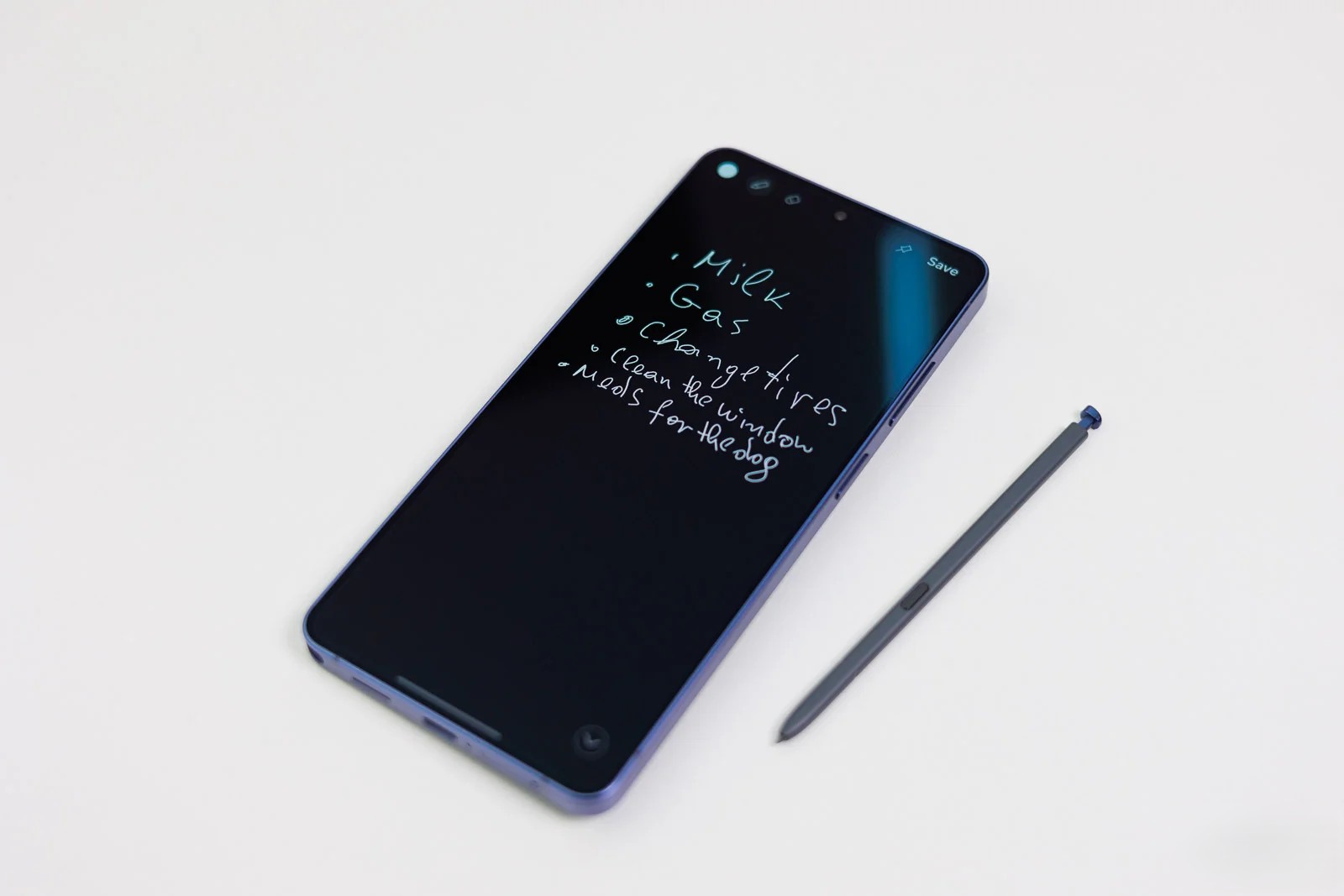
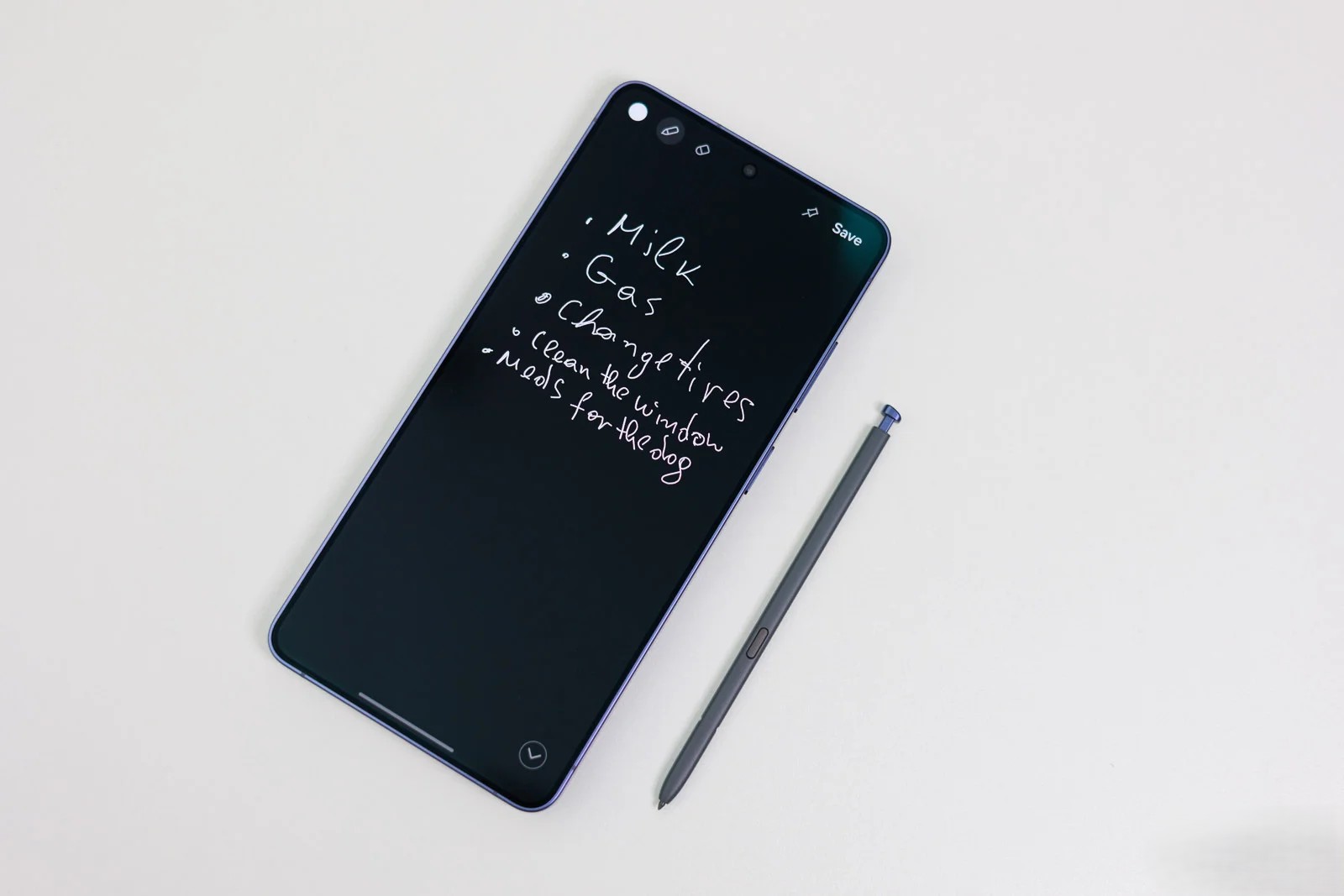
Screen Off Memo remains one of the oldest and most practical S Pen features. Users do not need to unlock the phone, open Samsung Notes or search for an app. They can simply remove the S Pen from the body of the phone and immediately start writing on the screen.
This feature is useful for capturing sudden ideas, phone numbers, shopping lists, meeting notes, daily tasks or quick sketches. Its biggest advantage is speed. In situations where typing feels slow, awkward or distracting, the S Pen can become the fastest way to record information.
Another important benefit is that Screen Off Memo notes can be pinned to the Always On Display. This allows users to keep an important reminder visible on the lock screen, turning the phone into a simple but effective daily productivity board.
Air Command: Samsung’s Floating Control Center for the S Pen
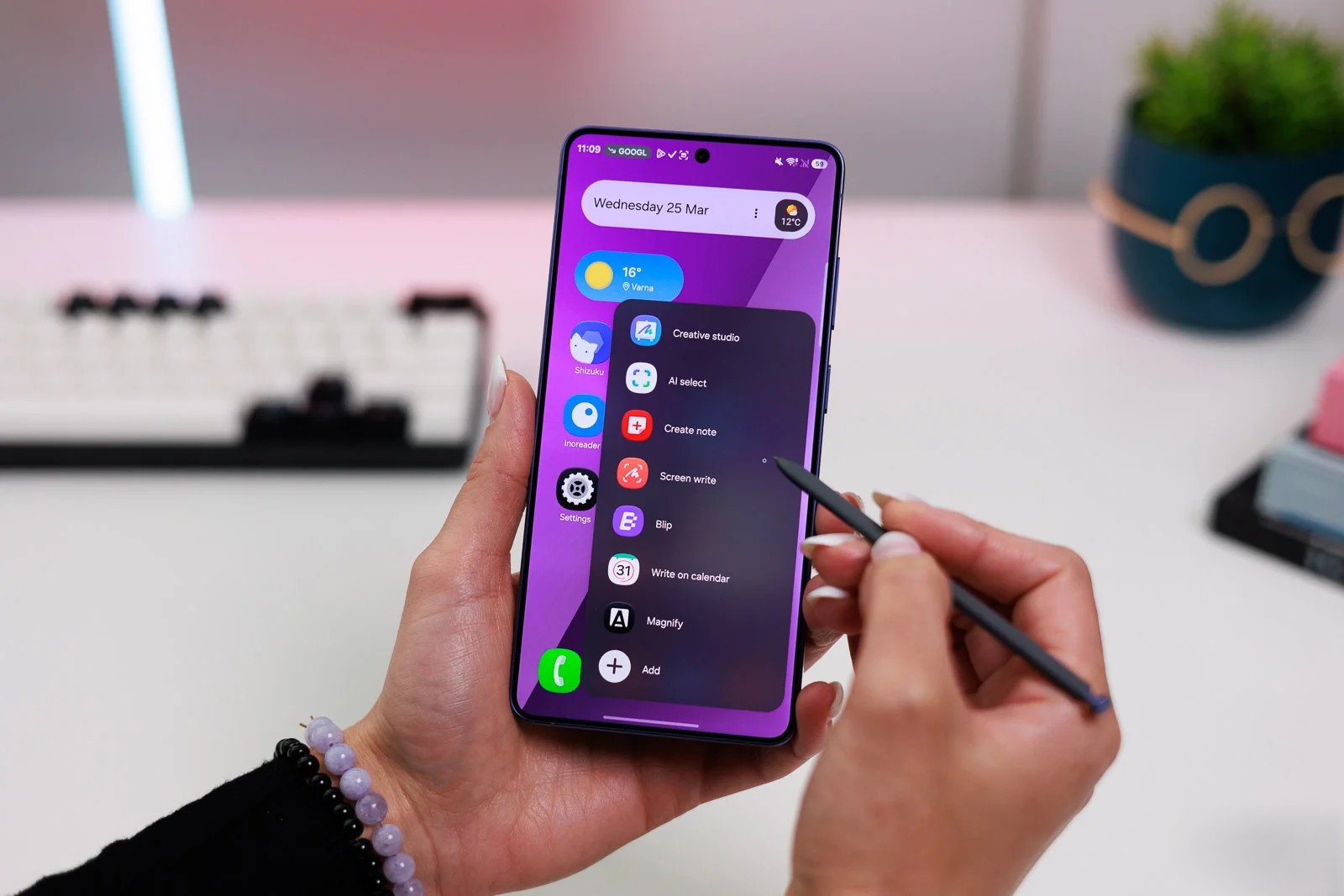
Air Command is the floating S Pen menu that gives users quick access to stylus-optimized tools. On the Galaxy S26 Ultra, it remains the main hub for features such as note creation, translation, screen writing and AI-powered selection. Samsung’s official S Pen guide says users can open Air Command by removing the S Pen, tapping the Air Command icon or hovering the pen over the screen and pressing the S Pen button. :contentReference[oaicite:0]{index=0}
Air Command can include tools such as AI Select, Creative Studio, Magnify, Screen Write, Create Note, Translate, Write on Calendar and PENUP. These tools make the S Pen more useful for selecting content, translating text, writing on screenshots, enlarging small details and starting a quick note without interrupting the workflow.
One of the more important creative changes is the stronger focus on Creative Studio. Samsung’s support documentation describes Creative Studio as part of its AI drawing and creative tools, allowing users to create AI sketches through Air Command, Samsung Notes, Gallery and related selection tools. :contentReference[oaicite:1]{index=1}
AI Select: Smart Selection with More Practical Uses
AI Select shows how Samsung is combining the S Pen experience with AI features. Samsung explains that users can access AI Select through the Edge panel, screenshot toolbar or S Pen Air Command on the S26 Ultra, then outline an area or tap an object to let the system highlight it automatically.
After selecting part of the screen, users can perform actions such as extracting text, creating GIFs, pinning content, translating information or using the selection for creative tasks. This can be useful for students, journalists, designers, researchers, content creators and regular users who often need to capture, mark up or share parts of what they see on screen.
S Pen to Text: Handwriting in Any Text Field
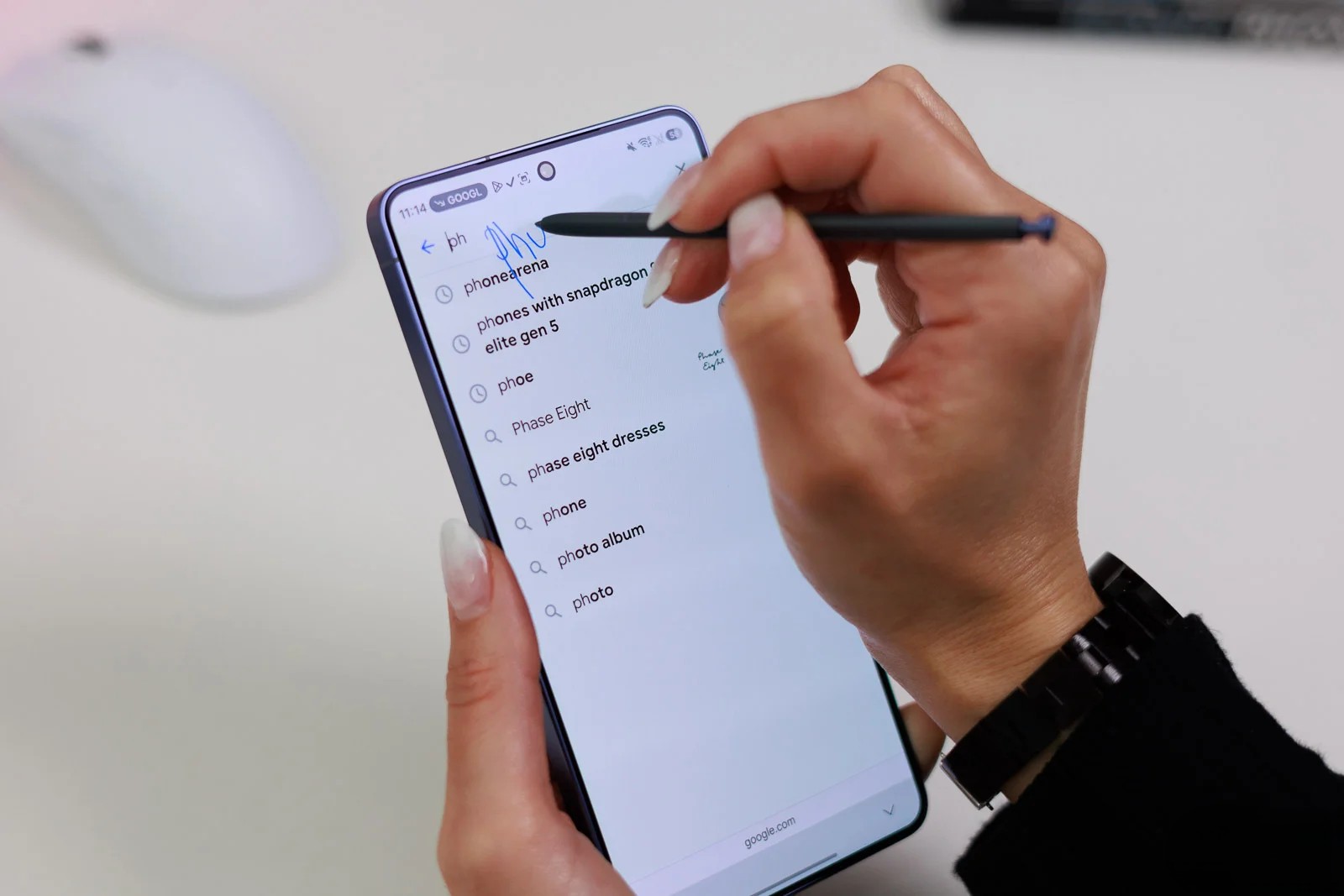
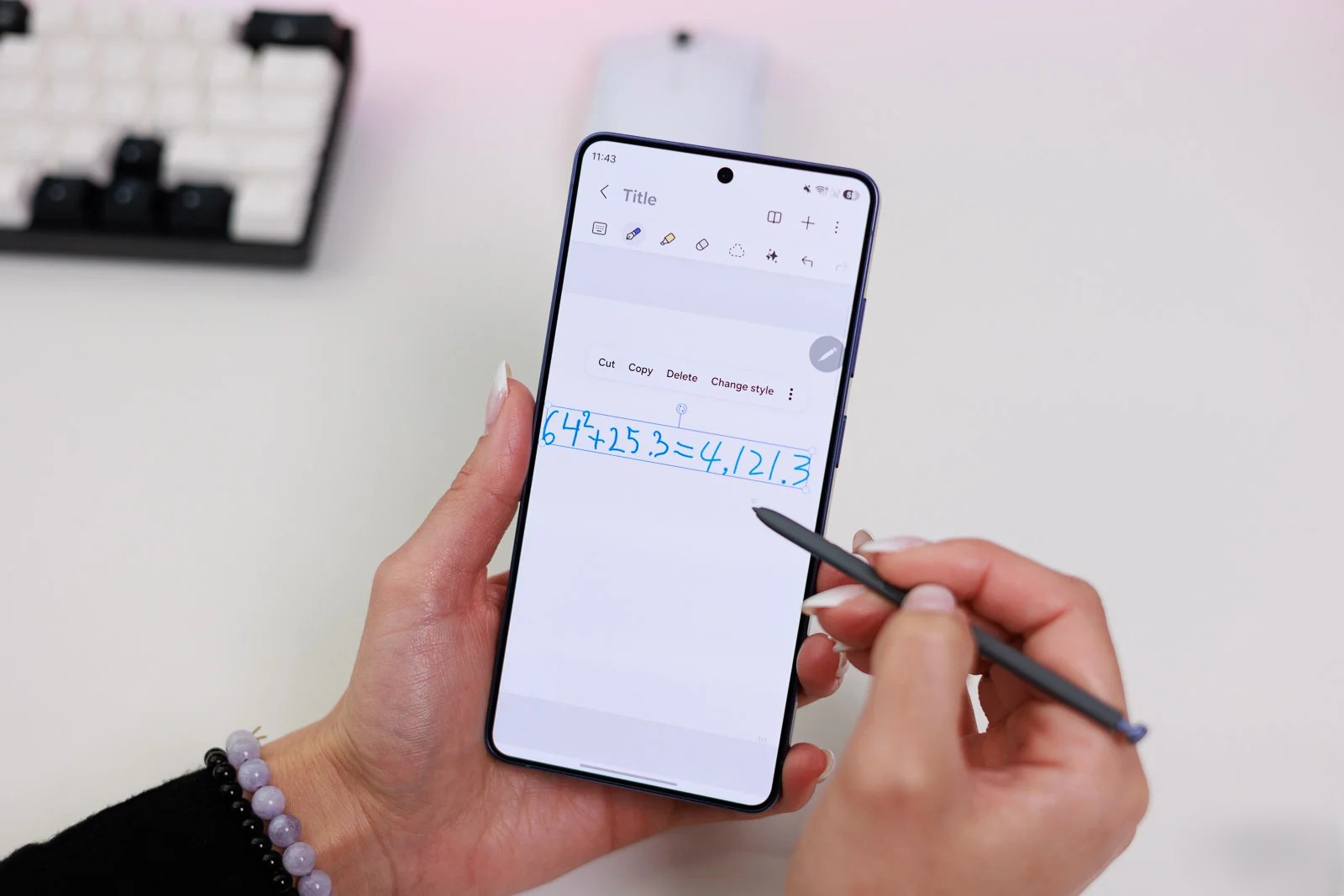
S Pen to Text allows users to write with the S Pen in supported text fields and have the phone convert handwriting into typed text. This can work in search bars, forms, messages, browser address fields and other parts of the interface where text input is available.
The feature is especially useful for users who do not always want to use the touch keyboard. It can feel more natural when writing short notes, entering search terms, filling small fields or using the phone while the S Pen is already in hand. It may not always be faster than typing, but in the right situation it can make text input feel more direct and personal.
Air View: Quick Preview Without Direct Touch
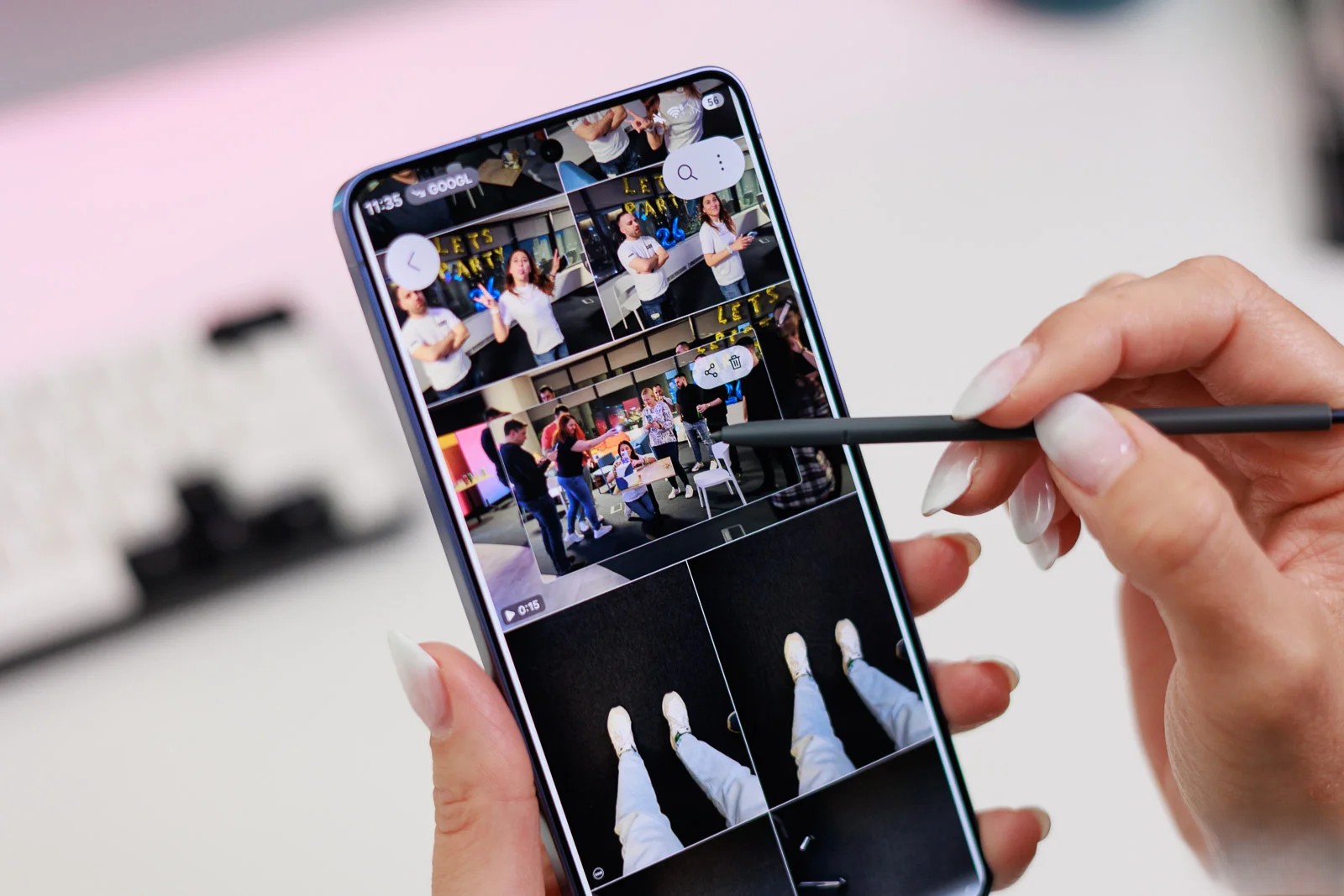
Air View is another practical S Pen feature that allows users to preview certain content without directly touching the screen. By hovering the pen near the display, users can see the precise pointer location and, in supported areas, preview links, events, images or files.
This is useful for people who work with galleries, calendars, documents, compact lists or dense content. Air View makes interaction more precise because users can inspect information before fully opening it.
Quick Notes: Floating Notes for Real Multitasking
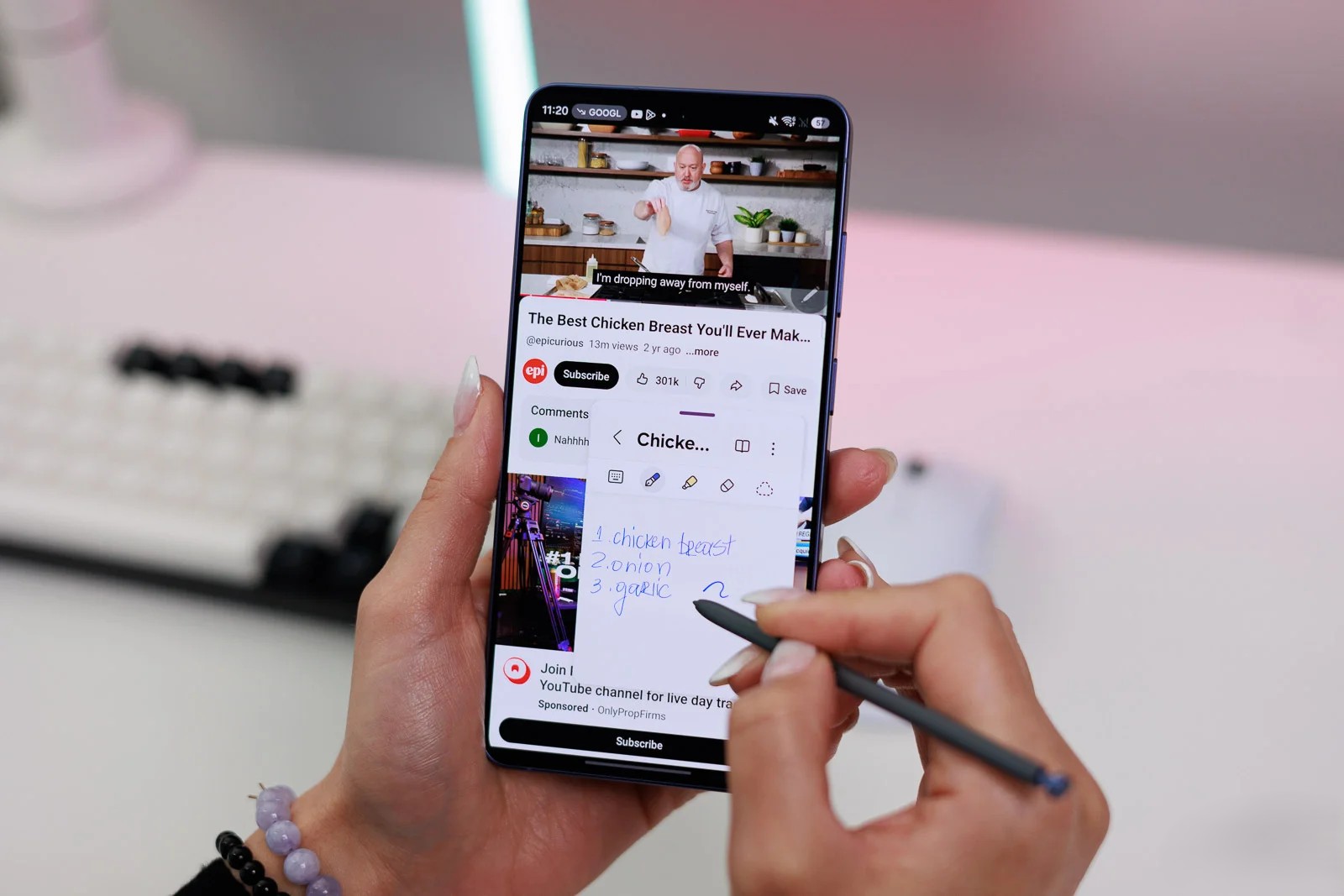
Quick Notes is one of the strongest examples of how the S Pen can improve multitasking. Users can open a small floating note while reading an article, watching a video, reviewing a document or planning a task, then write important points without leaving the current app.
The note window can be minimized into a floating icon and reopened when needed. This makes Quick Notes especially useful for students, researchers, managers, writers and professionals who want to keep their workflow uninterrupted while collecting ideas or information.
Samsung Notes: The Core of the S Pen Experience
Samsung Notes remains the most important app for serious S Pen users. It is more than a basic notes app; it includes tools for handwriting, drawing, text conversion, shape correction, document organization and educational use.
One of its most useful features is automatic shape correction. If a user draws a circle, square, triangle or diagram by hand, Samsung Notes can clean up the shape and make it look more precise. This is valuable for diagrams, classroom notes, planning sketches and quick visual explanations.
The Handwriting to Text feature also helps users convert handwritten notes into cleaner typed text. This is useful for people who prefer writing naturally first but want a searchable and more organized final version later.
PDF Annotation: Useful for Work, Study and Signatures
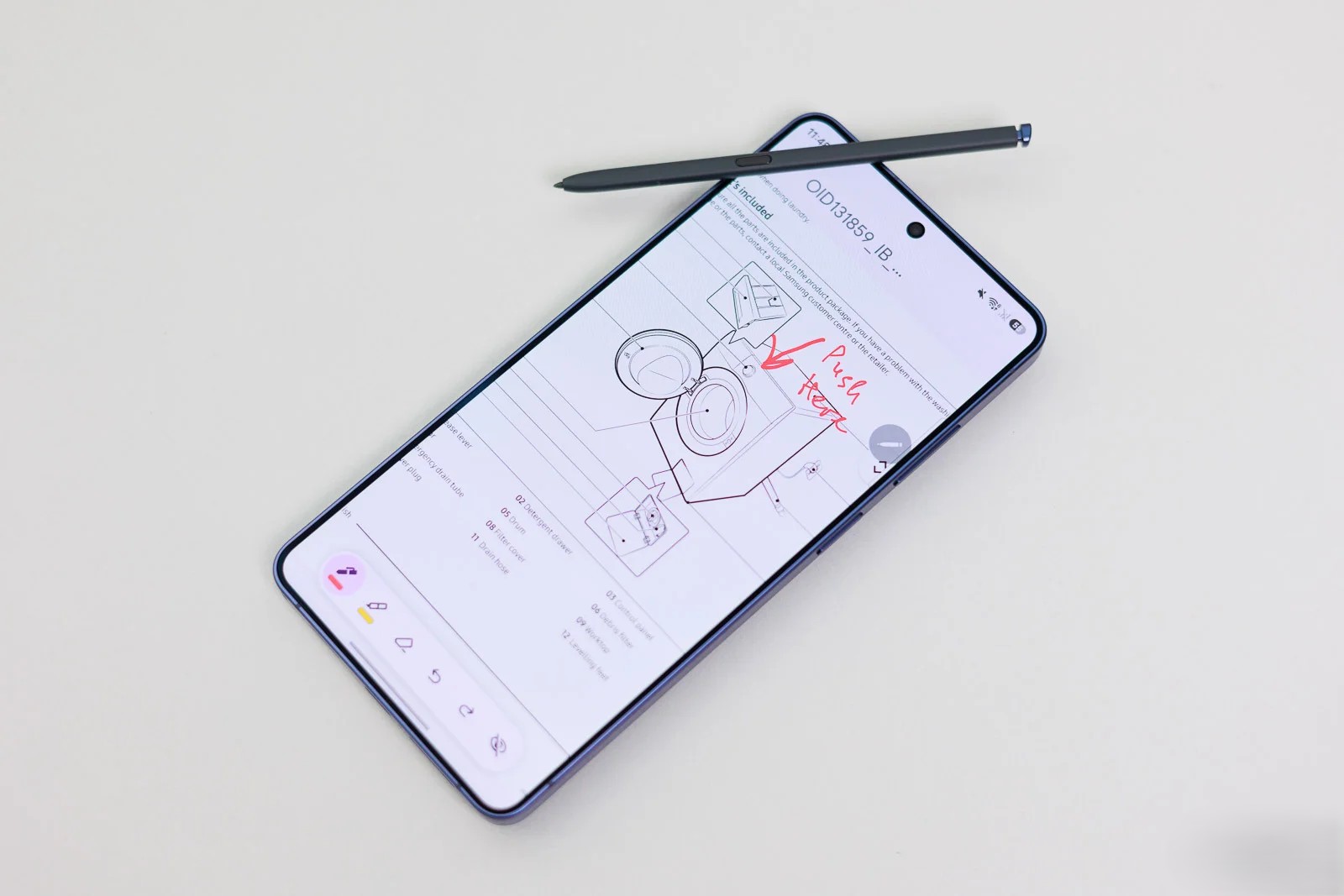
Another major S Pen use case is writing and annotating PDF files. Galaxy S26 Ultra users can open PDF documents through Samsung Notes or compatible file apps, then use the S Pen to highlight text, add comments, mark sections, write explanations or sign documents.
This is valuable for people who work with contracts, reports, academic papers, forms, training files or business documents. It does not replace a full professional PDF editor, but for everyday markup, signatures and comments, the S Pen is more than capable.
Important Limitations: No Bluetooth Air Actions
One important limitation is that the Galaxy S26 Ultra S Pen does not support Bluetooth-based features such as Air Actions. Samsung’s official accessory page states that the S Pen requires no charging or pairing and works only with the Galaxy S26 Ultra, but Bluetooth features such as Air Actions are not supported.
This means users should not expect to use the S Pen as a remote camera shutter or gesture-based remote control, unlike some older Galaxy Note and Ultra generations. The S Pen button still remains useful for opening Air Command, activating quick tools and changing pen-related behavior in supported apps, but it is no longer a Bluetooth remote.
Conclusion: The S Pen Is Still the Main Reason the Ultra Feels Ultra
The S Pen on the Galaxy S26 Ultra shows that Samsung is still committed to the idea of a stylus-equipped flagship phone. At a time when many premium smartphones are becoming increasingly similar, the S Pen gives Samsung’s Ultra model a unique productivity and creativity identity.
From instant notes and PDF annotation to precise search, translation, handwriting conversion, AI selection and creative tools, the S Pen can be a decisive feature for a specific group of users. For someone who only cares about camera and performance, it may not feel essential. But for users who treat their phone as a tool for work, study, organization and content creation, the S Pen remains one of the strongest reasons to choose the Galaxy S26 Ultra.